


TV Cast for Chromecast
3.73.21K Reviews
App Specs
- Version
- 1.4.5
- Updated On
- License
- Free
- Downloads
- 10,000,000+
- Developer
- EVOLLY.APP
- Categories
- Tools
- Platform
- Android, iOS
Screenshots
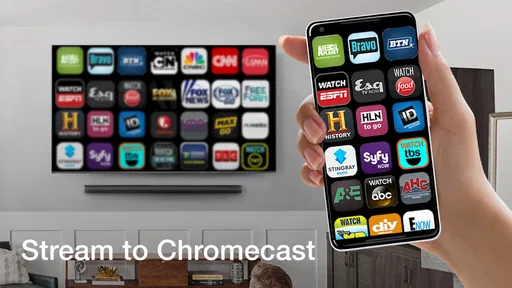
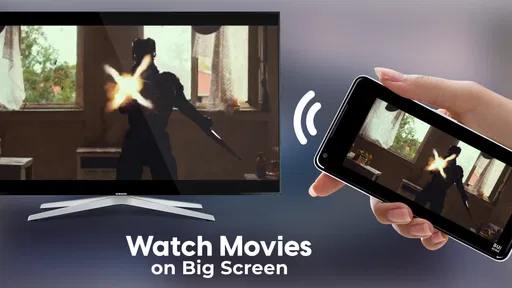
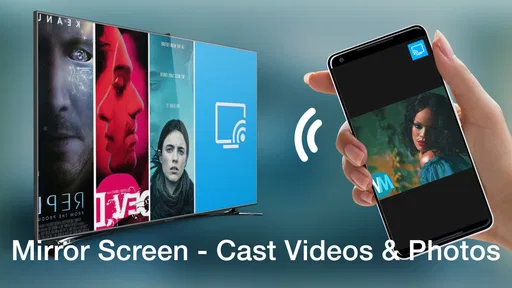
 Analysis by AppCompare
Before I rely on a phone-to-TV casting app, I ask a practical question: will it make a casual viewing session easier, or add another step when I just want to press play? TV Cast for Chromecast is designed for the first kind of job. It gives me a way to send media from my phone to a Chromecast-connected TV, and its appeal is less about complicated controls than having a straightforward option ready when a video, photo, or other compatible content is better enjoyed on a larger screen.
What to expect when you press play
Casting is not the same as making a slow connection fast. The app can help route content to a television, but smooth playback still depends on the network, the source, and the devices involved. I would think of it as a convenient controller and casting route, not a fix for weak Wi-Fi or an unreliable video source. If playback stutters, checking that the phone and Chromecast are using the same network is a sensible first step; then I would try the source again before assuming the app itself is the cause.
That distinction matters when you are choosing between this and simply watching on your phone. A small clip may be quicker to leave on the handset, while a longer video is worth casting if you want everyone in the room to watch together. The app’s built-in browser can be useful when you want to find a video within the casting workflow, but it does not make every website or source behave identically. I would test the site you actually use rather than assume that one successful stream guarantees every other one will work the same way.
When a viewing session gets demanding
For a quiet evening, a single video or a photo slideshow is a more realistic use than constantly switching between several sources. Each switch adds another chance to wait for a page or stream to respond, so I would queue up what I want to watch first and keep the phone nearby as the controller. Bookmarks can help if there are a few familiar sites or videos I return to, although they are most useful when they reduce repeated searching rather than become a long list to manage.
There is also a practical difference between sharing a few holiday pictures and using a phone as the center of a long movie night. Photos make this kind of app an easy way to bring people together around the TV; an extended session asks more of the network and makes any occasional disconnect more noticeable. If a connection drops, the original review’s experience suggests a restart may get things moving again, but that is a recovery step, not a guarantee of uninterrupted playback. I would keep the content easy to reopen and avoid treating the phone as a hands-off player.
Who will get the most from it
I can see the strongest fit for someone who already has a Chromecast setup and wants a simple way to share phone-based media on a television. It is especially handy when friends or family are visiting: rather than passing a phone around, you can put vacation pictures on the larger screen and talk through them together. It can also suit people who find a built-in browser useful for locating video content without bouncing between several apps.
On the other hand, if your TV already has the exact streaming apps you use and their own casting controls meet your needs, adding another route may not improve much. Someone who depends on consistently uninterrupted playback, or who wants one app to handle every website and video source in the same way, should be cautious. I would also skip it if I rarely cast anything; keeping an extra tool around is not worthwhile when the phone screen is already enough.
Worth Reading Before You Choose

EA SPORTS FC Mobile 26 Is a Bigger Football Game, but It Takes Time

Flipboard Shows What News Apps Must Do Beyond the Feed

Switching to Android Auto Means Rethinking Your Driving Routine

Google Calendar Makes a Crowded Week Easier to Manage

Ludo King Makes the Most of the Minutes Between Plans

Baby Panda World Brings Quick Play to Modern Phones, but Its Game Library Feels Busy
How it fits among casting alternatives
The usual alternatives are to use a streaming service’s own cast button, rely on the TV’s native apps, or mirror the entire phone screen. A service’s own controls are often the more direct choice when you are watching something inside that service. Native TV apps avoid using the phone as the route to the content. Screen mirroring is useful when you need to show something that is not a video, but it duplicates the phone display rather than focusing on sending selected media.
TV Cast for Chromecast sits between those approaches: its browser and media-casting purpose can be convenient when the content starts on the phone, while mirroring and direct service controls may make more sense in other situations. One useful habit is to decide what you are trying to show before opening the app. For a photo, choose the sharing or casting route that gives you the clearest view; for a stream, try the service’s own cast control if it is available; for a page or item that does not fit either route, the app’s browser may be worth trying.
Free to try, with a few trade-offs
The app is free to install, but some options are tied to in-app purchases, priced from about five to thirty-eight dollars per item. I would use the free experience long enough to identify an actual limitation before paying. If your routine is occasional photo sharing or a short video now and then, the paid options may not be necessary. If you cast frequently and run into a specific restriction, then it makes more sense to compare the available purchase with how often it would save you time.
It is a tools app from EVOLLY.APP, rated for Everyone, and its current version is 1.4.2. It has an average rating of 3.6 from around 73,000 ratings, with over 10 million installs. Those figures suggest a widely used app with mixed experiences, so I would treat it as a practical option to test rather than assume it will behave perfectly in every home. It is free, but the in-app purchase range is worth keeping in mind if you are deciding whether it fits a regular casting routine.
Small habits that make casting easier
A few choices can make the experience less fiddly. Before starting, check that both devices are on the same Wi-Fi network, and open the content you want to share before settling in. If you are using the browser, try a short clip first; that gives you a quick sense of whether the particular source works well before you commit to a longer viewing session. For a group, it also helps to decide who is holding the phone, so the controller does not disappear into the sofa just when someone wants to pause or change the video.
If a cast stops responding, I would first give the connection a moment, then reopen the content or restart the app if needed. Repeatedly tapping play can make it harder to tell whether the phone, source, or TV is catching up. When the same item keeps failing, switching to its service’s own casting option or the TV’s native app is a more useful test than endlessly retrying one route. That kind of fallback is particularly helpful when guests are waiting and troubleshooting is no longer the point of the evening.
Getting Started with TV Cast for Chromecast
First things first, setting up TV Cast for Chromecast is a breeze. You just need to make sure your Chromecast and your phone are on the same Wi-Fi network. The app guides you through the process with clear instructions, and before you know it, you’re ready to start casting. It’s available for both Android and iOS, so no one’s left out of the fun.
User Interface and Experience
The app’s interface is pretty straightforward, which I absolutely love. No one wants to wrestle with complicated menus when all you want to do is chill and watch your favorite show. The home screen gives you quick access to all the main features like browsing, bookmarks, and settings. It’s designed to be intuitive, and I found navigating through it to be a walk in the park.
One thing that stands out is the built-in browser. You can search for videos directly within the app and play them on your TV without any fuss. It’s like having a remote control in your hand, only cooler.
Streaming Quality
Now, let’s talk about the real meat of the matter: the streaming quality. I was genuinely impressed by how smoothly the content streamed. The video quality was top-notch, and there was no noticeable lag or buffering, which is often a concern with these types of apps. Whether it was a high-definition movie or a simple YouTube clip, everything looked crisp and clear.
However, keep in mind that your experience might vary depending on your internet speed and the quality of the source video. But in my tests, it performed exceptionally well.
Features That Stand Out
One of the standout features of TV Cast for Chromecast is the ability to cast a wide range of media formats. Whether it's videos, music, or even photos, this app has you covered. I found it particularly handy for sharing vacation pictures with family – no more crowding around a tiny phone screen!
Another cool feature is the bookmarking option. You can save your favorite sites or videos for quick access later, which is super convenient for someone like me who’s always juggling multiple shows at once.
Room for Improvement
While the app is great, there’s always a bit of room for improvement. Occasionally, the app would disconnect, requiring a quick restart to get everything back on track. It wasn’t a huge deal, but it was a bit of a hiccup in an otherwise smooth experience.
I also noticed that while the app is free, there are some features locked behind a paywall. If you’re a heavy user, you might find yourself wanting to unlock those extra features, which could add up over time.
Final Thoughts
All in all, TV Cast for Chromecast is a solid choice for anyone looking to enhance their home entertainment setup. It’s easy to use, performs well, and offers a range of features that make casting content to your TV a breeze. While there are a few minor drawbacks, the overall package is impressive.
So, if you’re tired of straining your eyes on a small screen and want to enjoy your favorite content the way it was meant to be seen, give TV Cast for Chromecast a try. You might just find it’s the missing link you’ve been looking for!
Pros
- Easy setup with Chromecast devices.
- Supports a wide range of video formats.
- No need for additional cables.
- User-friendly interface and navigation.
- Seamless streaming without disruptions.
Cons
- Limited free features
- requires in-app purchases.
- Occasional connectivity issues.
- Ads can be intrusive during use.
- No support for DRM-protected videos.
- Compatibility varies with older devices.
FAQs for TV Cast for Chromecast
What is TV Cast for Chromecast and how does it work?
TV Cast for Chromecast is an app that allows you to stream videos, photos, and music from your smartphone to your Chromecast-enabled TV. By connecting your phone and Chromecast to the same Wi-Fi network, you can easily send media content from your device to the larger screen, enhancing your viewing experience.
Which devices are compatible with TV Cast for Chromecast?
TV Cast for Chromecast is compatible with most smartphones and tablets running on Android or iOS. It requires a Chromecast device connected to a TV, and both must be linked to the same Wi-Fi network for the streaming to work seamlessly. Check your device specifications to ensure compatibility.
Are there any costs associated with using TV Cast for Chromecast?
TV Cast for Chromecast offers a free version with basic features. However, there may be in-app purchases or a premium version available that provides additional features, such as ad-free streaming, higher-quality video playback, or expanded format support. Check the app store for specific pricing details.
How can I troubleshoot connection issues with TV Cast for Chromecast?
If you experience connection issues, ensure both your phone and Chromecast are on the same Wi-Fi network. Restarting the app, your device, or the Wi-Fi router can often resolve connectivity problems. Also, check for any app or firmware updates that might be necessary for optimal performance.
Is TV Cast for Chromecast safe to use?
Yes, TV Cast for Chromecast is generally safe to use. It is developed with user privacy in mind, but as with any app, it’s important to download it from reputable sources like the Google Play Store or Apple App Store to avoid security risks. Regularly updating the app can also enhance its security features.


